A camera feed freezing as a vehicle enters the yard, a card terminal dropping out in the farm shop, or patchy Wi-Fi in the house after a new smart TV is installed are all familiar frustrations. Learning how to reduce WiFi interference starts with recognising that a slow or unreliable connection is not always a broadband problem. On farms, estates and larger rural properties, the local network often has as much influence on day-to-day performance as the internet service coming into the building.
Start by separating Wi-Fi interference from broadband faults
Wi-Fi carries data between your device and the router or access point. Broadband carries data from that router to the wider internet. If every device slows down at busy times, web pages take a long time to begin loading, or a speed test at the router is poor, the broadband connection may be the limiting factor. This is common where a property relies on an ageing copper line or where 4G and 5G signal changes with weather, foliage or network demand.
Interference is more likely when the connection is good near the router but becomes unreliable in certain rooms, buildings or parts of the yard. You may see devices disconnecting, video calls breaking up or security cameras appearing offline even though the router itself remains connected.
This distinction matters. Moving a router will not fix an inadequate broadband service, while buying a faster rural connection will not solve a poorly placed access point surrounded by metalwork and electrical equipment. A site should be assessed as a complete system.
The usual sources of Wi-Fi interference
The 2.4 GHz Wi-Fi band travels relatively well through walls and reaches further outdoors, but it is crowded. It is shared with many household and site devices. The 5 GHz band offers more room and often better speeds, although it does not travel as far through dense stone, concrete or metal. Newer equipment may also use 6 GHz, which can be very effective at close range but needs careful coverage planning.
Common causes include:
- neighbouring Wi-Fi networks using the same or overlapping channels;
- microwave ovens, cordless devices, Bluetooth equipment and some wireless sensors operating around 2.4 GHz;
- steel cladding, machinery, water tanks, foil-backed insulation and thick stone walls weakening or reflecting the signal;
- too many devices competing for one domestic router, particularly cameras, smart equipment and streaming devices;
- poorly positioned wireless links between buildings, including links partly obstructed by trees or new structures.
On agricultural sites, interference is rarely just one thing. A router may be located in a plant room, tucked beside a distribution board, behind a television, or in an office at the wrong end of the property. Then a camera system, livestock monitor and staff devices are all expected to work across yards, barns and buildings. That is a coverage and design issue as much as a signal issue.
How to reduce WiFi interference with better placement
The router or main access point should be positioned as centrally and openly as practical for the area it needs to serve. It should be elevated, clear of large metal objects and not enclosed in a cabinet. A utility cupboard may be convenient for incoming services, but it is seldom the best location for reliable wireless coverage.
Avoid placing Wi-Fi equipment beside electrical consumer units, alarm panels, large speakers, refrigeration equipment or dense bundles of cables where possible. These do not always cause a fault on their own, but they can make an already marginal signal less dependable.
For a house, moving a router from floor level in a corner to an open shelf nearer the centre can make a noticeable difference. For an office, workshop or farm building, the better answer may be a ceiling-mounted access point connected by cable. This gives the wireless signal a clean starting point where people and devices actually use it.
Do not assume that one powerful router can cover a farmhouse, office, workshop, several sheds and a yard. Wi-Fi works both ways. Your mobile phone or camera also has to transmit back to the access point, and its radio is far less powerful than a router. A distant device may show a reasonable signal yet still struggle to send data reliably.
Choose channels and bands deliberately
Most modern routers can choose channels automatically, and this is often adequate in isolated properties. However, automatic settings can make poor choices where several neighbouring networks are visible, or where a router does not reassess the radio environment effectively.
On 2.4 GHz, use channels 1, 6 or 11 rather than an in-between channel. These are the standard non-overlapping options. Setting a wide channel width on 2.4 GHz can look attractive on paper but often creates more contention. A 20 MHz channel is usually the sensible choice where reliability and range matter.
On 5 GHz, there are more channel options and less congestion, so it is often the preferred band for laptops, mobile phones, televisions and indoor cameras. Wider channels can improve peak speed, but only if the local airwaves are clear and devices are close enough. In a busy office or a site with several access points, narrower channels may provide a more stable result.
Where the equipment supports band steering, allow capable devices to use 5 GHz while retaining 2.4 GHz for longer-range or older devices. The trade-off is that some older smart devices and specialist equipment only work on 2.4 GHz. They may need their own appropriately configured network rather than being forced onto unsuitable settings.
Add access points, not random repeaters
A common response to weak Wi-Fi is to plug in a cheap wireless repeater halfway across the building. This can help in a small, simple home, but it is a poor fix for many farms and business sites. A repeater must receive and retransmit the same signal, which can reduce available capacity and simply extend an unstable connection.
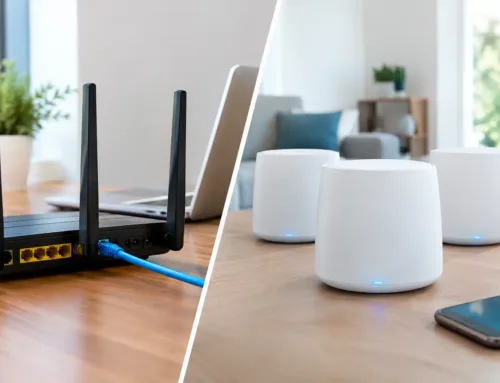
A wired access point is normally the more dependable option. It connects back to the router through network cable and creates strong local coverage without relying on a weak wireless hop. For large houses, offices and converted barns, two or more properly positioned access points can provide a far better experience than one high-powered router.
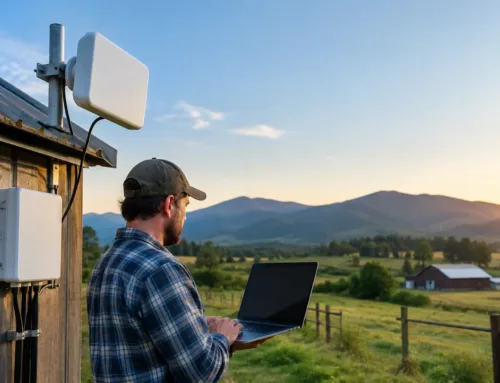
Where trenching a cable is impractical, a professionally aligned point-to-point wireless bridge can carry connectivity to another building. This is often suitable for a workshop, gatehouse, stable block or remote CCTV location. It needs clear line of sight, secure mounting and allowance for future tree growth, parked machinery and seasonal foliage. Once the link is in place, a local access point can serve that building properly.
Protect capacity for the devices that matter
Not all traffic has the same priority. A single high-resolution camera may use a modest amount of bandwidth under normal conditions, but several cameras uploading footage, cloud backups running and family streaming can quickly fill a limited connection. The result may feel like Wi-Fi interference even when the radio signal is sound.
Review what is connected and when it is busiest. Separate guest devices from operational equipment where appropriate, and keep cameras, alarm communicators, tills and office systems on a managed network. Quality of Service settings can prioritise time-sensitive traffic such as voice calls and video monitoring, although they cannot create bandwidth that is not available.
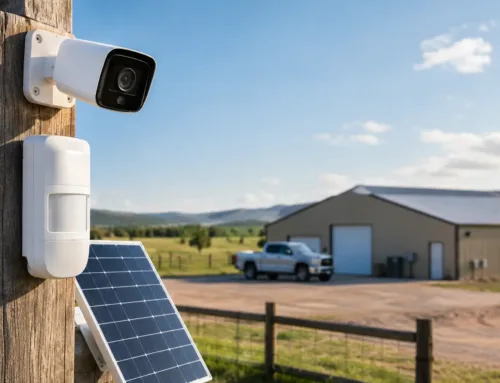
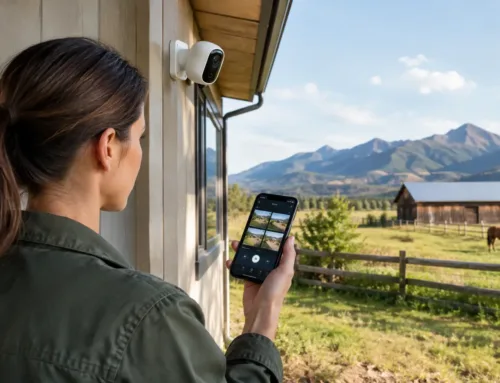
For CCTV across a rural site, local recording through a properly designed wired network is usually more resilient than relying on every camera sending continuous footage over Wi-Fi. Wireless cameras have their place, particularly at temporary or hard-to-reach locations, but they should be deployed with realistic expectations about signal, power and backhaul capacity.
Check for physical changes before changing settings
If a network that once worked well has deteriorated, inspect the site before resetting every router setting. A new metal-clad shed, solar installation, tree growth, relocated container or parked agricultural machinery may now sit in the path of a wireless link. Inside buildings, a new appliance, a moved router or a recently installed smart-home device may be relevant.
Also check the basics: firmware updates, damaged network cables, loose connectors, overloaded switches and power supplies. Wi-Fi faults are sometimes blamed on interference when the actual cause is a failing cable or a network device that has reached its limit.
A simple test is useful. Stand near the access point and test the connection, then repeat in the problem location at different times of day. If performance falls sharply with distance or through one particular wall, coverage is the likely issue. If it varies only at peak periods, look at broadband capacity, congestion or heavy local usage. Recording these observations makes a professional survey quicker and more targeted.
When a site survey is the sensible next step
Larger properties need a design based on building materials, terrain, device numbers and how the site operates. That may mean cable routes to key buildings, outdoor-rated access points for yard coverage, directional links for remote cameras, and a suitable connection such as fibre, 4G, 5G or Starlink at the core.
CUBTECH approaches this as one connected system rather than a collection of routers and cameras. A survey can identify where coverage is genuinely needed, which equipment should be wired, and where wireless technology is the practical choice. That helps avoid spending money repeatedly on extenders that do not address the underlying problem.
The most reliable Wi-Fi is rarely the one with the highest advertised speed. It is the network designed around where people work, where cameras need to see, and what must remain connected when the yard is busy and the weather turns.